Types of Element Locking
- Layer - When a layer is locked, all elements on the layer are locked.
- Individually - Elements can be individually locked independent from the locking status of their layer.
How to Identify Locked Elements
- Locked elements cannot be modified (moved, deleted, resized, etc.) in any way.
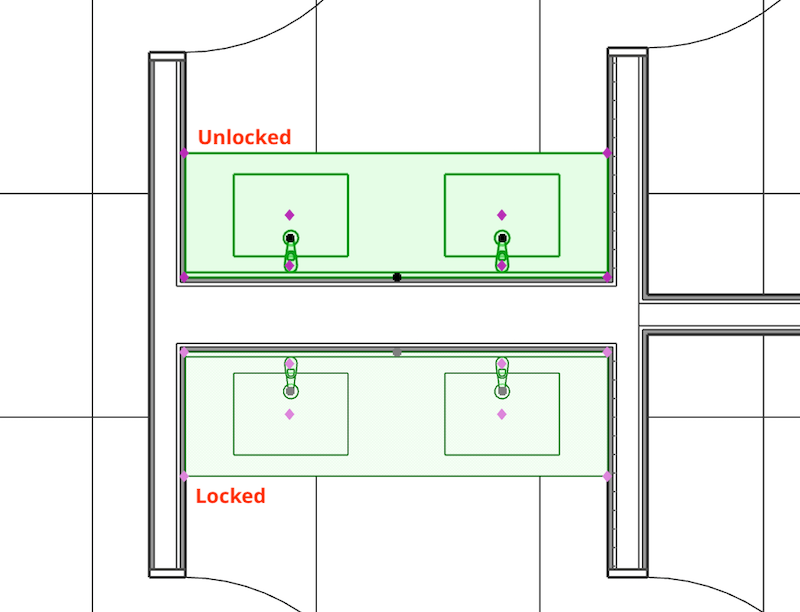
- When selected, a locked elements' hotspots and overall appearance will appear ghosted compared to unlocked element.
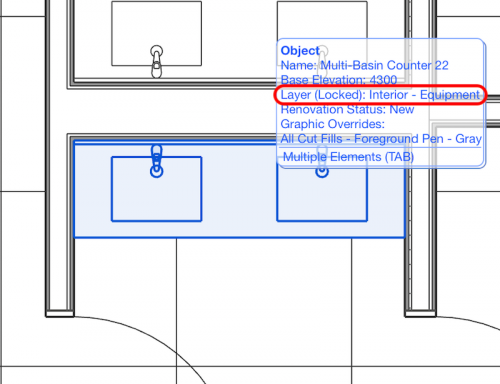
- When hovering over an element, the information dialogue will indicate whether the element or the elements' layer is locked.
How Elements Become Locked
- Predefined Layer Combinations - Office templates can be setup in a way where certain layer combinations lock and/or hide layers. Doing so prevents elements from being placed on the wrong layers or existing elements from being unintentionally modified.
- Intentionally - Users may intentionally lock certain elements to prevent them from being accidentally modified.
- MEP Add-on Use - Whenever someone using the MEP Add-on joins a project, all objects with an MEP component become locked and only accessible to the user with the MEP Add-on.
How to Unlock Locked Elements
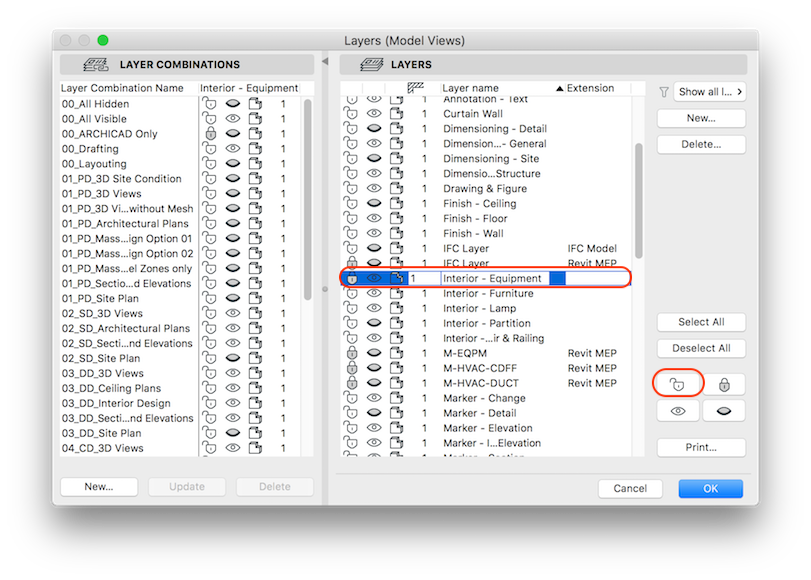
Layer - Open the Layers dialogue box and click the unlock button.
Individually - Select the locked element and go to
Edit >
Locking >
Unlock.