
Turn on suggestions
Auto-suggest helps you quickly narrow down your search results by suggesting possible matches as you type.
Showing results for
EN
Turn on suggestions
Auto-suggest helps you quickly narrow down your search results by suggesting possible matches as you type.
Showing results for
- English
- :
- Knowledge Base
- :
- Licensing
- :
- Educational License: Step-by-step
Options
- Subscribe to RSS Feed
- Mark as New
- Mark as Read
- Bookmark
- Subscribe to Topic
- Printer Friendly Page
- Report Inappropriate Content
Educational License: Step-by-step
on
2022-09-05
04:26 PM
- edited on
2026-04-30
10:19 PM
by
 Emoke Csikos
Options
- Subscribe to RSS Feed
- Mark as New
- Mark as Read
- Bookmark
- Subscribe to Topic
- Printer Friendly Page
- Report Inappropriate Content
Labels:
Did you know that students, teachers, and schools can get a free educational license to access Graphisoft products: Archicad, BIMx, and BIMcloud?
In this article, we will show you how to get your EDU license in some quick steps and explain everything you need to know about an Educational license! 😊
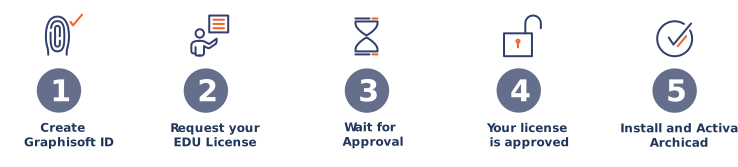
FIRST TIME GETTING EDU LICENSE
Step 1 - Create a Graphisoft ID
The first step to requesting your student license is to have a Graphisoft ID. If you already have an account, you don't need to create a new one, and you can log in to your Graphisoft ID on myarchicad.com and request your educational license right away!
On the MyArchicad page, click Register & Download in your corresponding field: Student, Teacher, or School.
Fill out the registration menu with your personal information:
- Full Name,
- Email (we advise you to register with your academic email to speed up the process)
- Password
- Country of Residence.
Before signing up, select to agree and accept our Terms of Use and click Sign up.
After you create an account, you will receive a confirmation email. Click on Confirm Registration to finalize the Graphisoft account creation step. Now you have a Graphisoft ID. Once you confirm your registration, the site will redirect to Educational License Form. (more detail on the next step)
Do you want to know more about Graphisoft ID and its advantages? Take a look at these articles!
Step 2 - Fill out the MyArchicad form
This step is essential to confirm your eligibility, so please make sure to insert the correct information:
- Check if the country appearing is your Country of Residence instead of your nationality country. (If what is available is not your country of residence, log in on the website: https://graphisoftid.Graphisoft.com/#/profile, and under Personal details, select your residence country from the drop-down list.)
- Certify to write the University name without abbreviations. (Eg: the University of Rabat instead of UIR).
- Confirm your eligibility by uploading your certification as a student/teacher. It can be any of these:
- Dated Student/Employee ID
- Class Schedule
- Official letters
- Transcript
This document must have all of the following:
- Your full legal name
- The name of the educational institution at which you are enrolled/employed
- A date within the current school term
When uploading your document, please ensure that it is in one of the following file formats: JPG, PDF, or PNG. Please note that you can only upload one file.
Step 3 - Approval email
Within 5 workdays, you should receive the approval email requesting you to login into the MyArchicad page to check your 1-year license serial number.
If you got an email Unsuccessful: Request for the Archicad 1-year license, this is probably due to incomplete or incorrect information. You can correct the data and re-apply. Check out and follow Step 2 - Fill out the MyArchicad form.
Step 4 - Log in to check your Serial number.
That is the final step! Log in on the MyArchicad page. You can see that there is available a new serial number with a 1-year expiration date.
Now, when you start Archicad, and it requests your user and serial number, insert your email address (The same one you have for the Graphisoft ID) and the new serial number.
Here are some tips:
- To avoid mistyping, we suggest copy-pasting your serial number and your email.
- Check if there is no extra space after your email too.
- Certify that the Archicad version you have installed is the same as the serial number you have received. (E.g. You have installed Archicad French 24, but you are trying to insert the serial number for Archicad International 25. The software will not accept, so you should download Archicad International or request a serial number for Archicad French, explained in detail in the Frequently Asked Section).
DOWNLOAD/ INSTALLATION
You got your serial number. Now let's install Archicad to start working on it immediately!
Step 1 - Download
On the MyArchicad page, on the right side of the serial number, there is the download button, which is the adequate version of your serial number.

Important: Download both the current Archicad version and the corresponding update. Both must be installed in order to use Archicad successfully.

Step 2 - Install
After downloading the Archicad installer, run the installation file and install Archicad.
-
Start the installer to open the Welcome Screen.
Click Next to continue.
- License Agreement
Read the license agreement carefully and accept it. Click Open in Browser to see the Agreement in a new window. Click Next.
- Select Installation Directory
On this page, define the file path of the installation. As a rule, you should choose the path suggested by Default to simplify the installation of any future updates.
To confirm the file path, click Next.
-
Choose Setup Type
With the Typical installation option (recommended), you will install Archicad with all the components (e.g.: Library).
Alternatively, choose the Custom installation option to install only specific program components.
After you make your choice, click Next.
- Installation Summary
This screen summarizes your chosen configuration, In case you need to make any corrections to the installation settings.Click Install to begin the installation.
- Installation Underway
Depending on your Hardware configuration, this process may take several minutes. In addition to other components, CodeMeter, the BIMx Desktop Viewer, and the License Manager Tool are all installed in the background.
- For Mac users:
If you are installing Archicad on a macOS 10.15 system, you will see a warning: for Archicad to run properly you must enable Full Disk Access in macOS settings. Follow the steps described in the warning dialog. -
Shortcuts
Here you can create an Archicad Desktop shortcut.
Review the setting to Enable Archicad to Check for Updates automatically (checked by Default).
Confirm your choices by clicking Next.
-
CodeMeter
If the installation process includes installing CodeMeter, it is required to restart your computer now. - Complete Installation
Click Finish to complete the installation process. You may be requested to restart your computer.


(ARCHICAD installation does not automatically install Help files to your computer. ARCHICAD provides up-to-date Help resources online.
You do not need to install Help files on your computer if you work online. If you work offline or your internet connection is unstable, we recommend downloading and installing Offline Help. Click the link to access and download Help files to your computer.)
Step 3 - Activate Archicad
To unlock all features in Archicad, you must activate your educational license. Without a license, Archicad starts only in demo mode, in which you cannot save.
1. Start Archicad.
2. From Archicad 25 onward, additional authentication is required to use Archicad. In the Archicad start menu, you will be prompted to log in with your Graphisoft ID. Your Graphisoft ID is the email address and password you also use to log into your myArchicad account. If you do not yet have a myArchicad account, you can register for free at https://myarchicad.graphisoft.com/
3. Enter the email address and password you use for your myArchicad account and click Sign in. If you do not see the orange sign-in button, simply scroll down a bit.
Note: If the window shown above remains empty, please update your graphics card driver.
4. You are now logged in and can either create a new project via the side menu on the start screen or in the main window under Start New Project, or search for an existing project.
5. Archicad will then prompt you to activate the license. Select Activate license code. In the next window, select Educational license.
6. Now you need your username and serial number. You can find this information in your myArchicad account. Log in to your myArchicad account at myarchicad.graphisoft.com and locate your license details. Make sure that the selected serial number matches the Archicad language version you installed. The International Archicad educational version (INT) can only be activated with the international serial number. The same applies to other language versions.
7. Enter your username and serial number in Archicad to activate the license. It is best to copy the data directly from your myArchicad account and paste it to avoid typing errors. Once the data has been entered correctly, a checkmark will appear next to the serial number and the Activate and restart button will become active. You can now proceed by clicking Activate & Restart.


Warning: If you receive the error message This serial number has expired, there are two possible causes—please check both:
- You entered a serial number whose validity period has already expired. To obtain a new, valid serial number, simply renew your license.

- You entered a serial number whose validity ends after March 23, 2027. In this case, you can only activate the serial number if you have installed the latest update for Archicad 28 or Archicad 29 (Archicad 28.3.3 or Archicad 29.1.x or newer). If the update is not installed, the serial number will be shown as invalid. Check the download page to see if an update is available for your version. Close Archicad, download the update, and start the installation process by double-clicking the downloaded installation file. Then open Archicad and try activating your license again. With this serial number, you can no longer use Archicad 27 or older versions.

RENEW/UPGRADE EDU LICENSE
After your first application, there are two options to continue with us:
Renew your license: You can extend your license for 1-year as long as you are a student/teacher.
Upgrade your license: Request a new License for the latest version of Archicad. This option becomes available always when Graphisoft launches a new version of Archicad. Upgrading guarantees the best version of our software and the most up-to-date features!
You can see that both have similar steps. Take a look at the step-by-step:
Step 1 - Request Renewal/Upgrade
When you open Archicad, and the serial number is close to expiry, it sends a warning message to renew it. Click in License Renewal > Click here to obtain a new serial number.


It will redirect to your account on myarchicad.com. Click on "Apply for the 1-year license".

In case you are UPGRADING, your profile on the MyArchicad website will look like this:

Step 2 - Update the form
As in step 2 of the First time getting an Edu license, you should complete the form with your student's information to confirm your eligibility as a student/teacher/school. Most of the information will be pre-filled, but you should check and update any missing or changed data about you, your university, and your studies, as well as upload the proof/document of affiliation to an academic institution.
Step 3 - MyArchicad Email reply
You should get an email within two weeks, either Approved or Unsuccessful. If the email is approved, you will be oriented to log on to myarchicad.com to check your serial number.
Always check if the new serial number is for the same Archicad version you have installed on your computer.
If it is not, you should download the updated version or contact your local partner.
If you got the unsuccessful email, it must probably be because of incorrect or incomplete information. You can correct and re-apply directly after the email. Or you can also contact your local partner (Get in touch) to acknowledge why you got an unsuccessful reply.

If you still have questions or want to learn more about Educational licenses, you can access our article Educational License - Frequently Asked Questions.
Do you want to contact us?
You can contact our local representatives in your region. On your profile on the MyArchicad webpage > Get in touch. As shown in the image below:

Didn't find the answer?
Check other topics in this Forum
Back to ForumRead the latest accepted solutions!
Accepted Solutions


