
Turn on suggestions
Auto-suggest helps you quickly narrow down your search results by suggesting possible matches as you type.
Showing results for
EN
Turn on suggestions
Auto-suggest helps you quickly narrow down your search results by suggesting possible matches as you type.
Showing results for
- English
- :
- Forum
- :
- Documentation
- :
- Graphic Override for Beams
Options
- Subscribe to RSS Feed
- Mark Topic as New
- Mark Topic as Read
- Pin this post for me
- Bookmark
- Subscribe to Topic
- Mute
- Printer Friendly Page

VivSta
Contributor
Options
- Mark as New
- Bookmark
- Subscribe
- Mute
- Subscribe to RSS Feed
- Permalink
- Report Inappropriate Content
2023-09-15 11:28 AM
Graphic Override for Beams
2023-09-15
11:28 AM
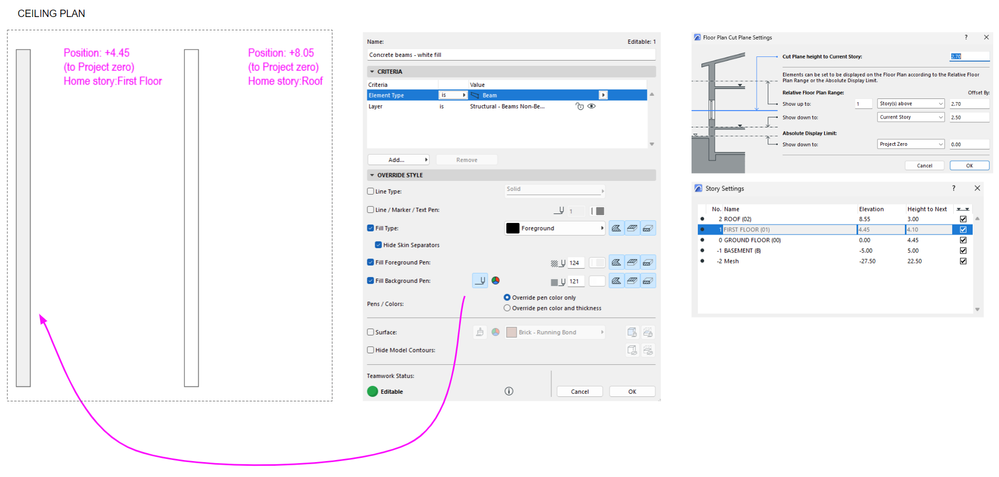
Hello! I am working on ceiling plans and trying to use a GO (grey fill) for the ceiling beams. I noticed that the GO I created only works with the beam that is set in an elevation below the cut plane and not the one above that. I played with changing the home story, however that doesn't make any change. Any ideas how to make the GO apply to the second beam displayed on my attached screenshot? Thanks in advance!
Labels:
- Labels:
-
Graphic Overrides
14 Replies 14

Mahmoud Qenawi
Ace
Options
- Mark as New
- Bookmark
- Subscribe
- Mute
- Subscribe to RSS Feed
- Permalink
- Report Inappropriate Content
2023-09-18 04:39 PM
2023-09-18
04:39 PM
In addition to what @Barry Kelly & @Lingwisyer suggested you may try to create a new storey for ceiling level and set walls to be shown in All relevant Floors and beams to be shown in home storey and one storey down as they are linked to Roof floor as home storey,
the last thing to adjust FPCP to show above ceiling till down the roof slab as @Barry Kelly clarified before & as the attached ScreenShots.


AC 29 INT 4006/WIN 11
AMD Ryzen 7 5800H with Radeon Graphics 3.20 GHz 16.0 GB
AMD Ryzen 7 5800H with Radeon Graphics 3.20 GHz 16.0 GB

Lingwisyer
Guru
Options
- Mark as New
- Bookmark
- Subscribe
- Mute
- Subscribe to RSS Feed
- Permalink
- Report Inappropriate Content
2023-09-19 03:39 AM
2023-09-19
03:39 AM
If you do not need to default hidden overhead display for the beam, you could set it to Outlines Only. It will basically ignore your FPCP then and retain it's cover fill.
| AC22-29 AUS 3200 | Help Those Help You - Add a Signature |
| Self-taught, bend it till it breaks | Creating a Thread |
| Win11 | i9 10850K | 64GB | RX6600 | Win11 | 7800X3D | 32GB | RTX5070TI |

Niranjan Das Sharma
Enthusiast
Options
- Mark as New
- Bookmark
- Subscribe
- Mute
- Subscribe to RSS Feed
- Permalink
- Report Inappropriate Content
2025-05-18 08:19 AM
2025-05-18
08:19 AM
Is that applicable to slabs aswell? I am trying to do a fill on a slab above cut plane and is not showing up.

Barry Kelly
Moderator
Options
- Mark as New
- Bookmark
- Subscribe
- Mute
- Subscribe to RSS Feed
- Permalink
- Report Inappropriate Content
2025-05-18 08:35 AM
2025-05-18
08:35 AM
For me a slab with a cover fill shows the fill no matter what the height is.
Barry.
One of the forum moderators.
Versions 6.5 to 27
i7-10700 @ 2.9Ghz, 32GB ram, GeForce RTX 2060 (6GB), Windows 10
Lenovo Thinkpad - i7-1270P 2.20 GHz, 32GB RAM, Nvidia T550, Windows 11
Versions 6.5 to 27
i7-10700 @ 2.9Ghz, 32GB ram, GeForce RTX 2060 (6GB), Windows 10
Lenovo Thinkpad - i7-1270P 2.20 GHz, 32GB RAM, Nvidia T550, Windows 11

jl_lt
Ace
Options
- Mark as New
- Bookmark
- Subscribe
- Mute
- Subscribe to RSS Feed
- Permalink
- Report Inappropriate Content
2025-05-19 04:18 PM - edited 2025-05-19 06:31 PM
2025-05-19
04:18 PM
another possible solution would be to divide your plan in 2 different parts with different settings via cloned folders: one where the walls (and the rest of the elements) appear as you want them, and another where the beams appear as you want them (but not the walls). Then, you can stitch/overlap the views together in the layout. its a little bit more work, but this way you can control the settings independently. You can overlap different levels using this (where the beams appear correctly), or you might need to do special GO and layer combinations for the beams for it to work.
best of lucks!

- « Previous
-
- 1
- 2
- Next »
- « Previous
-
- 1
- 2
- Next »
Still looking?

