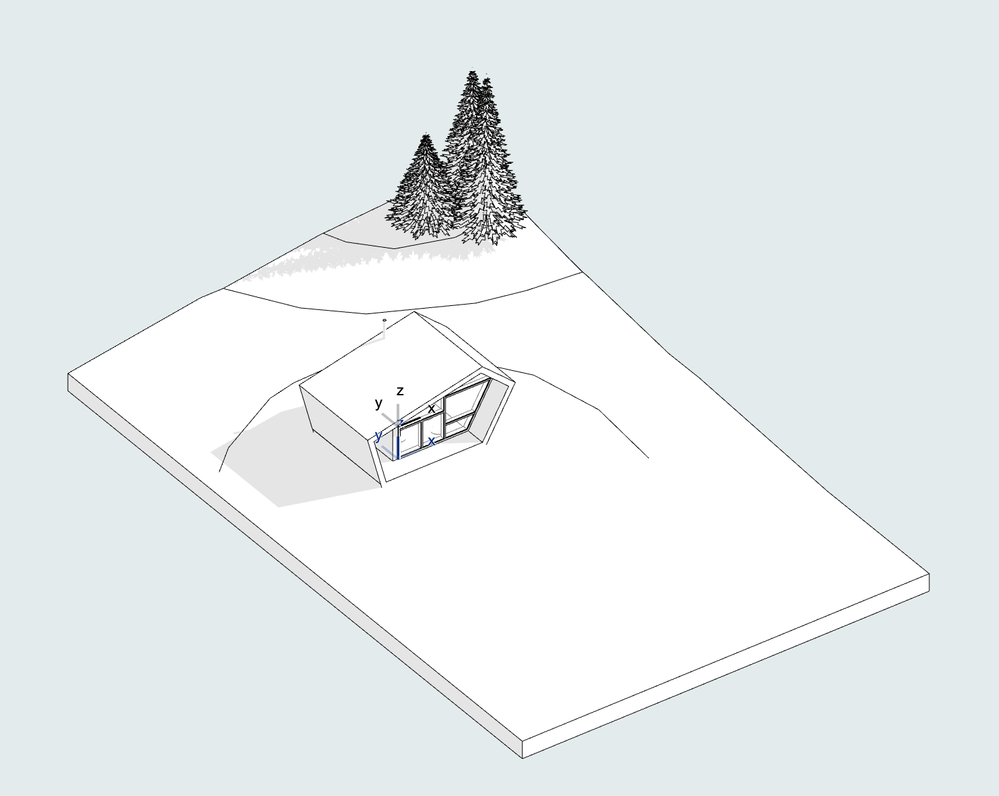
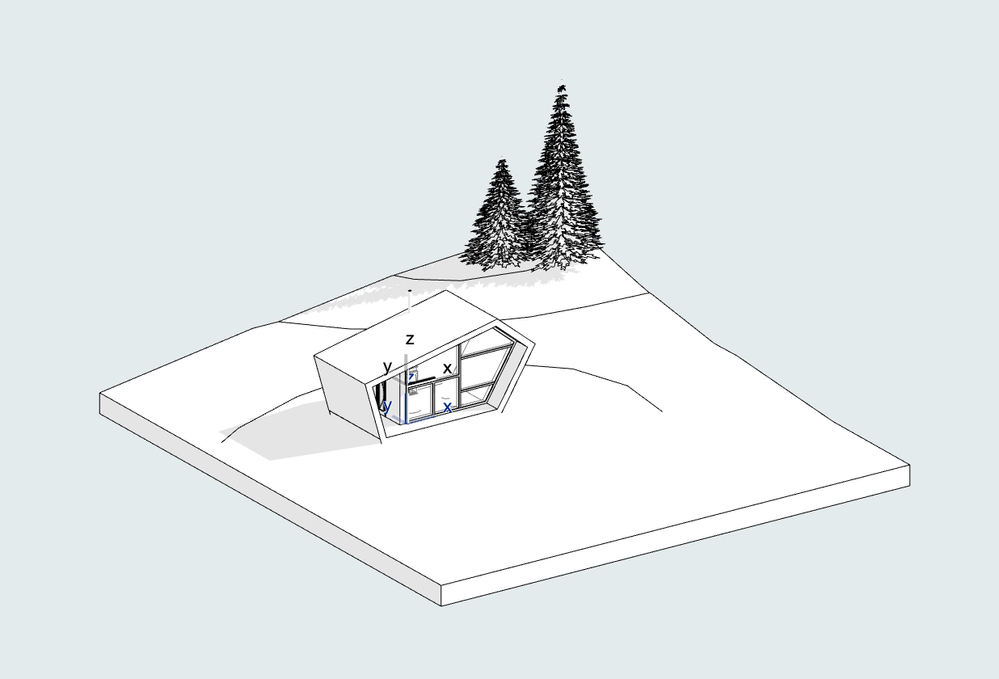
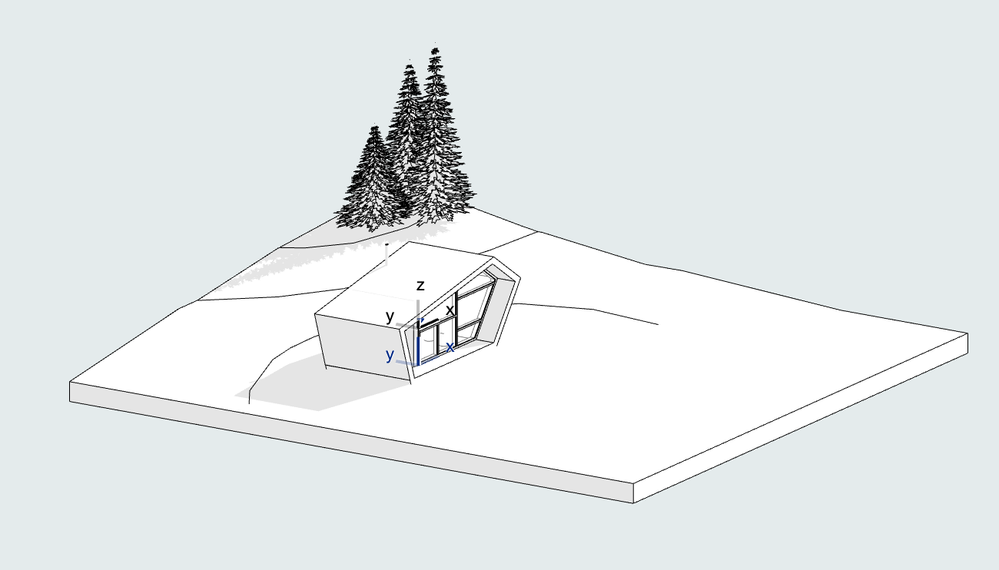
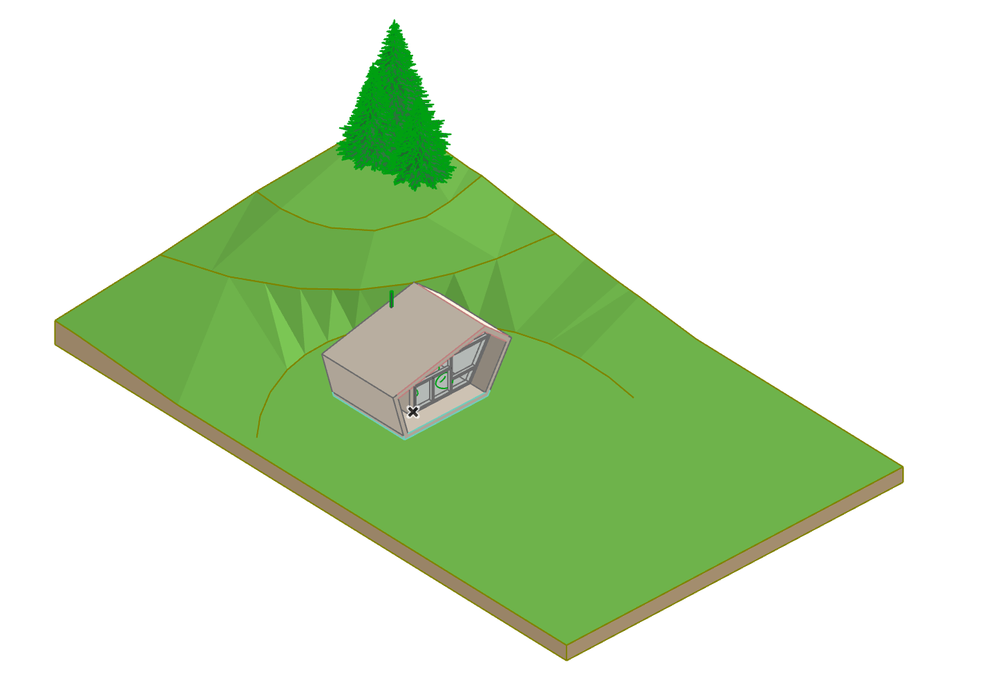
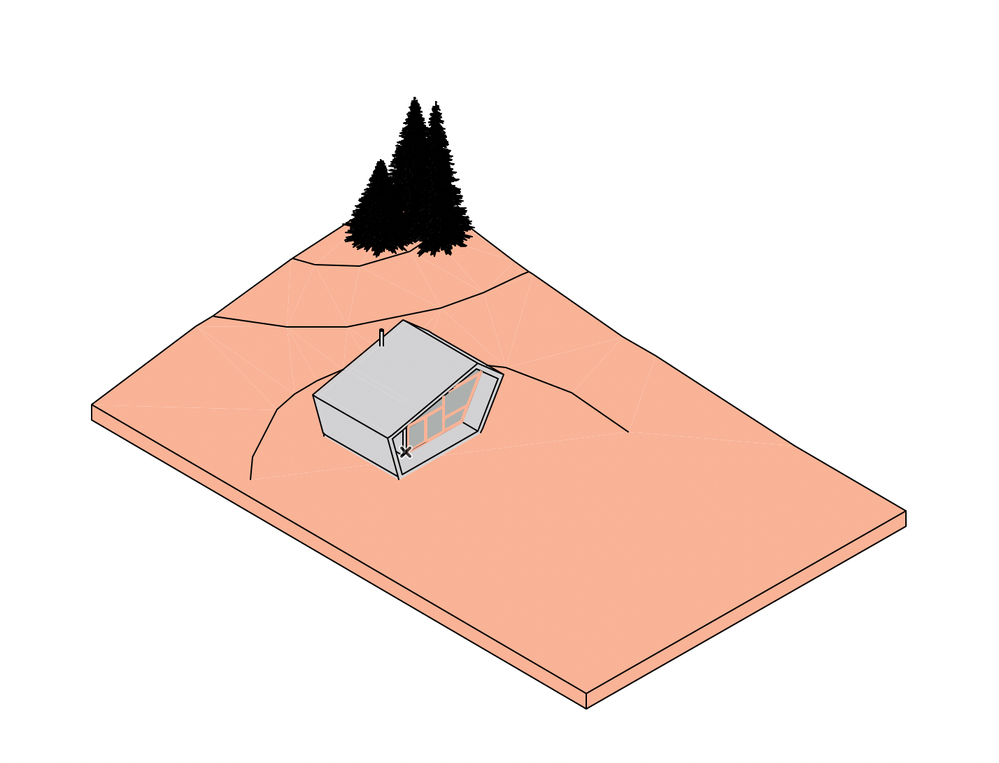
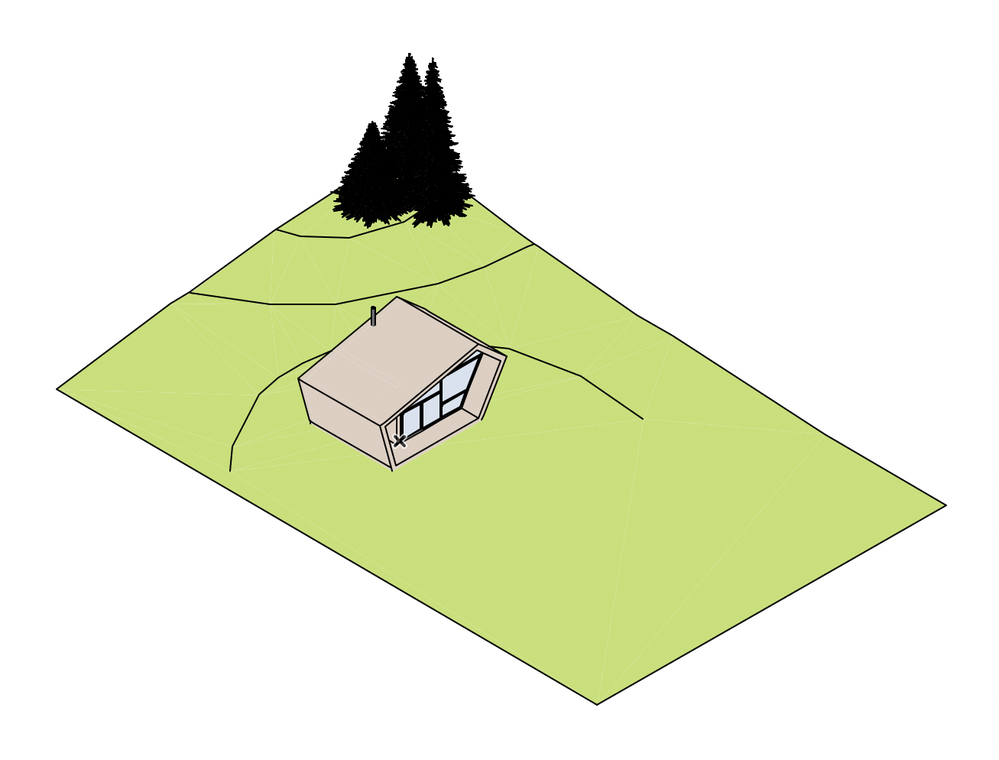
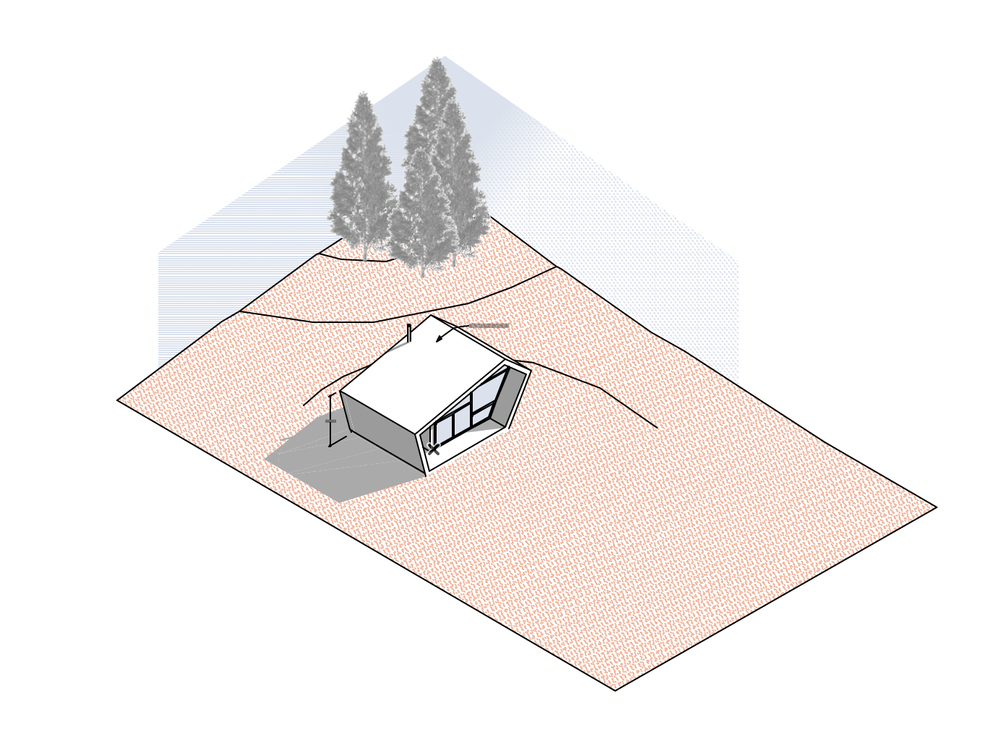
In this article we want to provide some tips and tricks to supplement or enhance architectural drawings. Architects need enhanced architectural drawings to be able to represent their design concept efficiently.
Of course, you have to start with a proper model in Archicad.
Step 1: Create an Axonometry View
The next step is to find the best view of the model, which helps you represent every detail you want. Nowadays, axonometry’s role is confined to conceptual drawings. Of course, a perspective view also can be the right choice, here you can read about how to set up a perspective view.
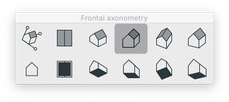
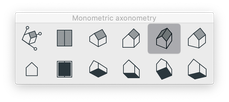
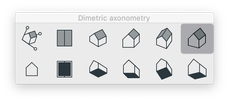
In Archicad we can find the required settings to achieve different axonometries. In the Projection Settings dialog presets are available for the basic types of projections.
Click to see the different Parallel Projection types
Custom
Top
Isometric
Frontal
Monometric
Dimetric
Step 2: Create a 3D Document
The 3D Document allows you to use either the Floor Plan or the 3D view of the model as the basis for creating a document, to which you can add dimensions, labels and additional 2D drawing elements.
Click to see the steps for creating a 3D Document
Right click on Generic Axonometry in the Navigator
Select “New 3D Document” from the context menu
In the appearing dialog type the Reference ID and the Name of the 3D Document
3D Document will be generated by clicking on Create button
The current view of 3D will be displayed
Step 3: Set up a Graphic Override Combination
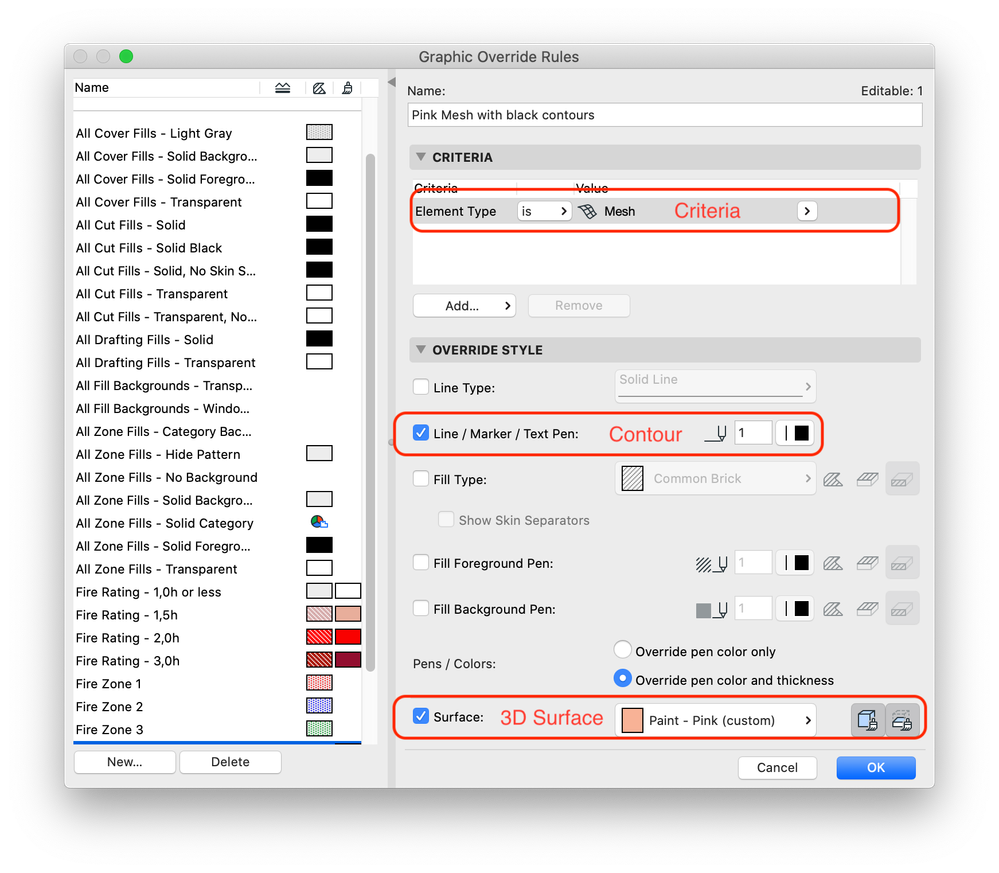
Use Graphic Overrides to apply a predefined appearance (color, fill) to different model elements. First, create Graphic Override Rules. A Rule defines what type of elements (based on specific criteria) should be overridden and how they should look like (3D surface, contour line, fill) as a result of the override.
Why do we use Graphic Override instead of re-coloring the elements in their settings?
Because re-coloring an element is a global setting, in every view, even on the rendering, you would see that specific color. If you use the Graphic Override feature, you can have different colors in every view.
First, set up Graphic Override Rules, then create a Graphic Override Combination and apply the Combination.
Click to see how to create a Graphic Override Rule
Create a Rule
Go to Document > Graphic Overrides > Graphic Override Rules
Click the New button at the bottom of the Graphic Override Rules dialog box
In the Criteria list, the first line is always Element Type
Select this first line, then click the black arrow at the end of the row to choose a value for this criterion from the pop-up
To define additional criteria, click the Add... button to bring up a list of Parameters & Properties
Choose criteria
Then click Add (or press Enter) to add it to the list.
You can add additional Element Types, plus any more criteria as needed
Define Override Style
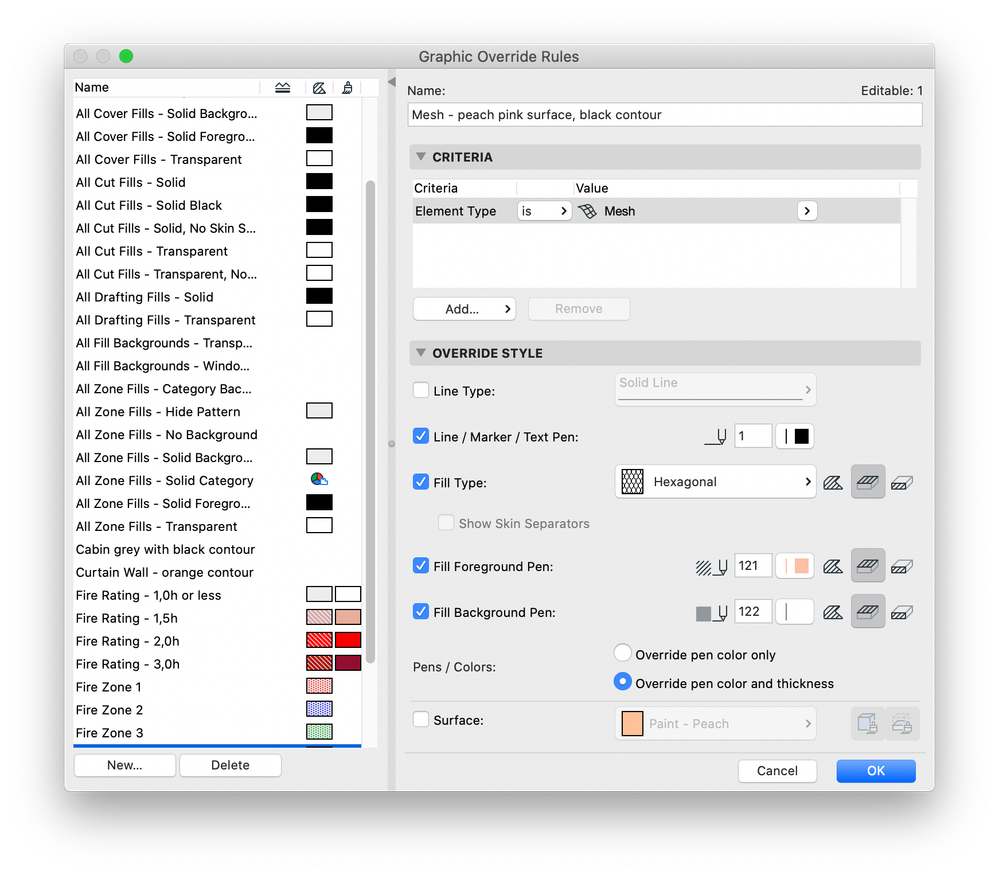
Use the Override Style panel to define how to display elements that fit this Rule’s criteria.
Check the boxes of the attributes you want to override. For each of these attributes, define the type (e.g., pen color, line type) as applicable.
Alternatively you can also override the Fill Type and Colors instead of the 3D Surface.
Click to see how to define a Graphic Override Combination
Define Graphic Override Combination
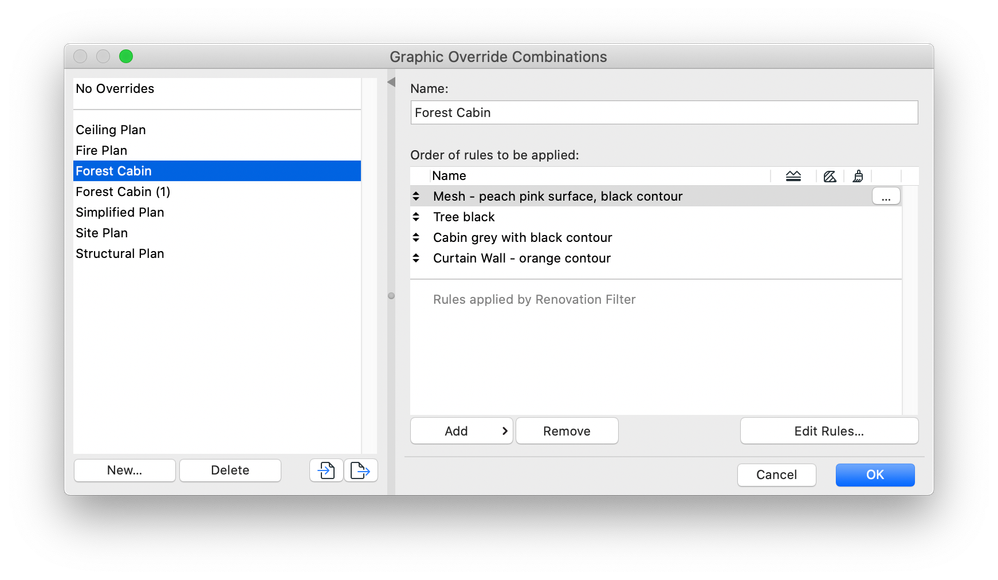
A Graphic Override Combination (a View Setting) is a collection of Graphic Override Rules applied to the elements of the model view in a particular order.
Go to Document > Graphic Overrides > Graphic Override Combinations
Click on New and enter the name
Click on Add and select the rules you want to add from the list
Click OK to create the new Combination
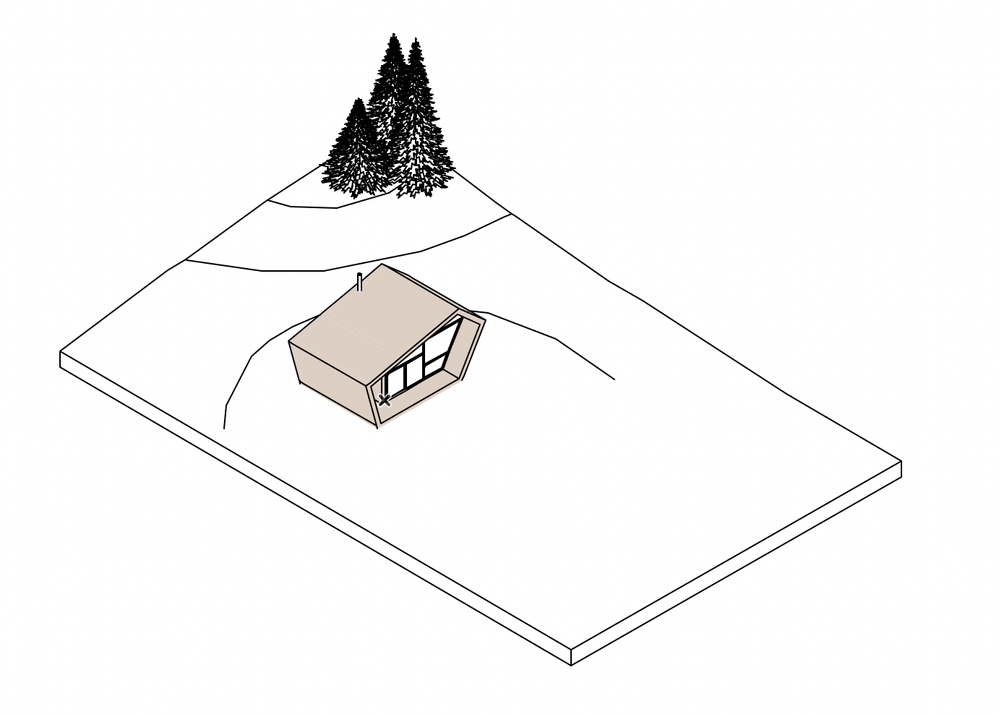
Apply the Combination: Go to Document > Graphic Overrides and select the new Combination (or use the Quick Options Bar)
Examples:
Step 4: Add Dimensionsand Labels
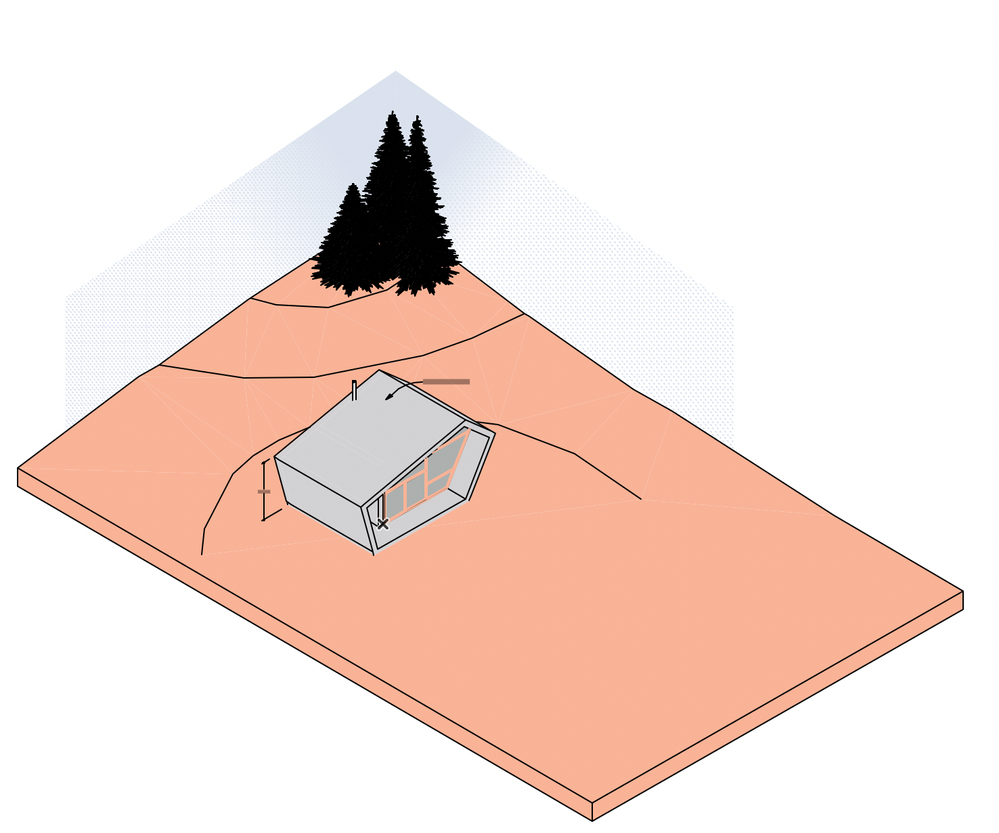
To the 3D Document, you can add dimensions and labels. To place them, use Archicad’s dimensioning tools, plus certain dimensioning functions that are available only for 3D Documents.
Step 5: Add Fills and Lines
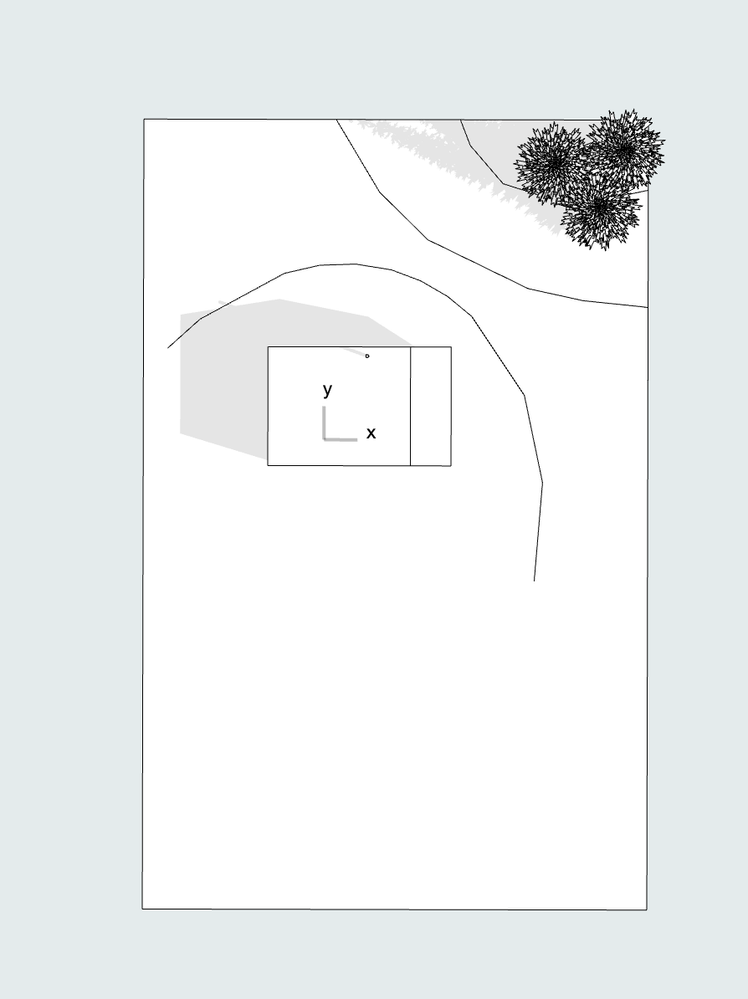
To the 3D Document, you can add any 2D elements, such as fills and lines. In this example, we used two types of Fills on top of each other for the sky.
Further Tipsand Examples
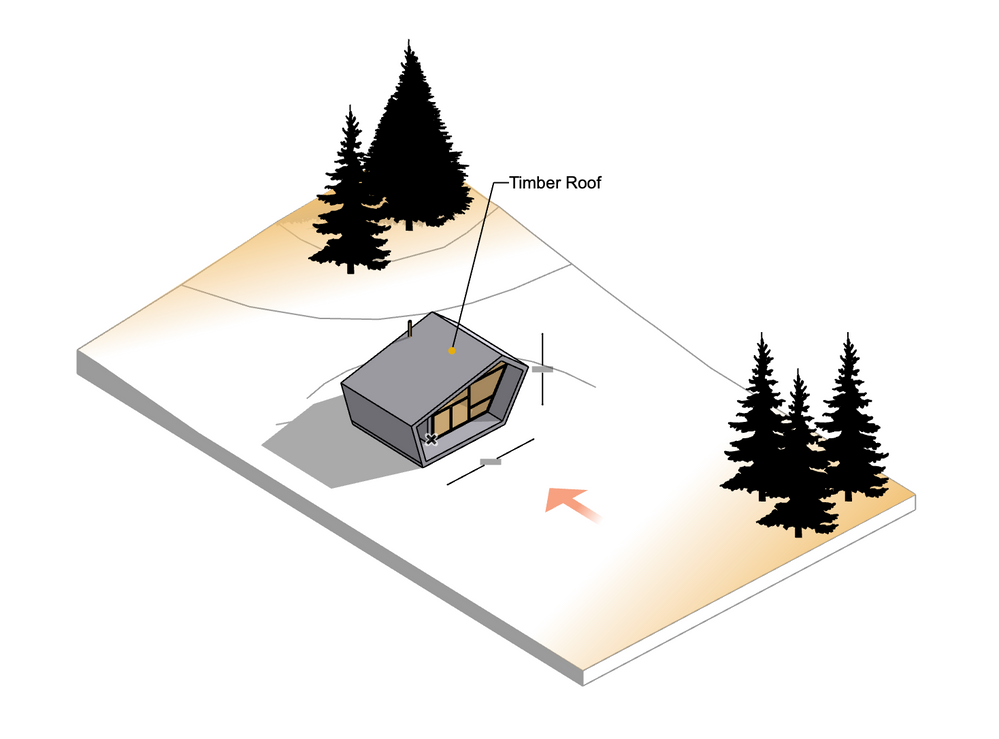
Turn on Shadows
Go to Document > Documenting Tools > 3D Document Settings