Archicad stores Preferences and Work Environment files to preserve your customized setup between sessions. In rare cases, these files can become corrupt, which may prevent Archicad from starting or cause unexpected crashes. In such cases, as a troubleshooting step, you can delete these files. This does not harm the installation, as Archicad will automatically recreate them with default settings the next time it launches.
However, removing these files will reset interface customizations such as shortcuts, palette positions, and other user-specific settings. Before deleting anything, create a backup copy.
(For troubleshooting crashes, please also see: Here.)
Preparation Steps
- Make sure you have your BIM Server address, username, and password written down as you will need to re-enter this information.
- Send all changes in any Teamwork projects so the BIM Server has the latest updates. Your local Teamwork data will be deleted during this process.
- Export and save your customized Work Environment. (See guide here.)
- If you use custom IFC or DWG translators, export them to a safe location as well.
Cleaning preferences on a MAC
Delete following files and folders (where
xx stands for the version number of ARCHICAD and
yyy is the localization of ARCHICAD):
- ~/Library/Preferences/Graphisoft/AC xx.0.0 yyy v1 folder - this folder contains the basic preferences files and all the Work Environment files.
- ~/Library/Preferences/com.Graphisoft.AC xx.0.0 yyy v1.plist - this file contains some basic settings of ARCHICAD. The Windows equivalent of this file are the Registry keys.
- ~/Library/Caches/Graphisoft folder - this folder contains library cache files and the local cache copy of network libraries.
- ~/Library/Application Support/Graphisoft folder - this folder contains the Archicad autosave folder, the ARCHICAD templates, the DXF-DWG translators, IFC preferences, Bug reporter log files, publisher log files, and the local cache of the Teamwork projects. Note: You may want to back up this folder in order to keep your Work Environment files and DXF-DWG translators. In case having unsent changes in Teamwork projects, then do not delete ~/Library/Application Support/Graphisoft/TW Data folder.
 ~/ means the current user's home folder. Users/<username>
 No Library Folder? Starting with OS X 10.7, the Library folder within the userhome folder is hidden by default. To browse the ~/Library folder:
- In Finder choose Go, Go To Folder
- Type ~/Library
- Click go to navigate to the Library folder
- Or simply press option (alt) when the Go menu is open in Finder to show Library on the list
- Or press Command + Shift + . (dot)
Cleaning preferences on a PC
STEP 1: Delete the following files and folders:
- Users\<Username>\AppData\Roaming\Graphisoft\ folder - this folder contains the basic preferences files and all the Work Environment files
- Users\<Username>\AppData\Local\Graphisoft\ folder - this folder contains library cache files and the local cache copy of network libraries, and IFC settings
- Users\<Username>\Graphisoft\ folder - this folder contains ARCHICAD templates, crash logs, publisher log files, IFC and DXF-DWG Translator files, and the local cache of the Teamwork projects
 In case of having unsent changes in Teamwork projects, do not delete <userhome>Graphisoft\TW Data folder.
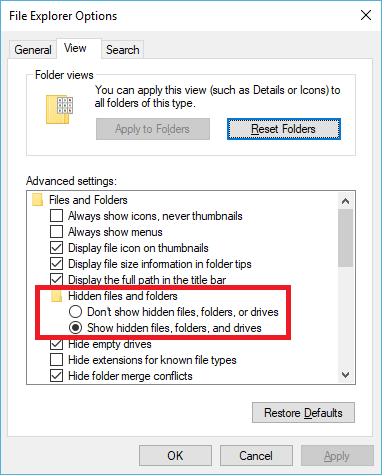
No AppData folder? It is often hidden by default. You can show hidden files and folders. To do this you need to open Control Panel and go to File Explorer Options. Open the View tab and under Hidden files and folders tick the second radio button shown on the image below:
STEP 2: Run REGEDIT. There, go to HKEY_CURRENT_USER/SOFTWARE/ and delete the entry called Graphisoft.
 WARNING: This step is for expert-level users. If you are not familiar with Windows Registry, skip this step!
STEP 3: Restart ARCHICAD.