
Turn on suggestions
Auto-suggest helps you quickly narrow down your search results by suggesting possible matches as you type.
Showing results for
EN
Turn on suggestions
Auto-suggest helps you quickly narrow down your search results by suggesting possible matches as you type.
Showing results for
- English
- :
- Forum
- :
- Visualization
- :
- surfaces not showing on door
Options
- Subscribe to RSS Feed
- Mark Topic as New
- Mark Topic as Read
- Pin this post for me
- Bookmark
- Subscribe to Topic
- Mute
- Printer Friendly Page

Dave Brach
Expert
Options
- Mark as New
- Bookmark
- Subscribe
- Mute
- Subscribe to RSS Feed
- Permalink
- Report Inappropriate Content
2023-07-14
06:25 PM
- last edited on
2023-07-25
09:53 PM
by
 Laszlo Nagy
surfaces not showing on door
2023-07-14
06:25 PM
I am trying to add a mahogany wood surface to a door, but the door stays white. As far as I can tell it has nothing to do with Renovation filters or Graphic Overrides, or model view options. This should be super simple-- what am I doing wrong?
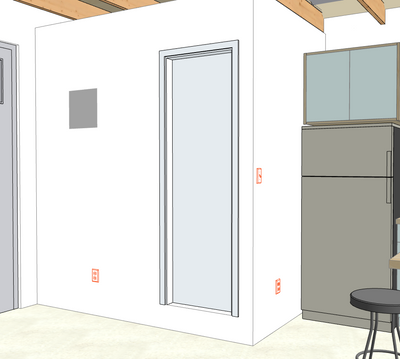
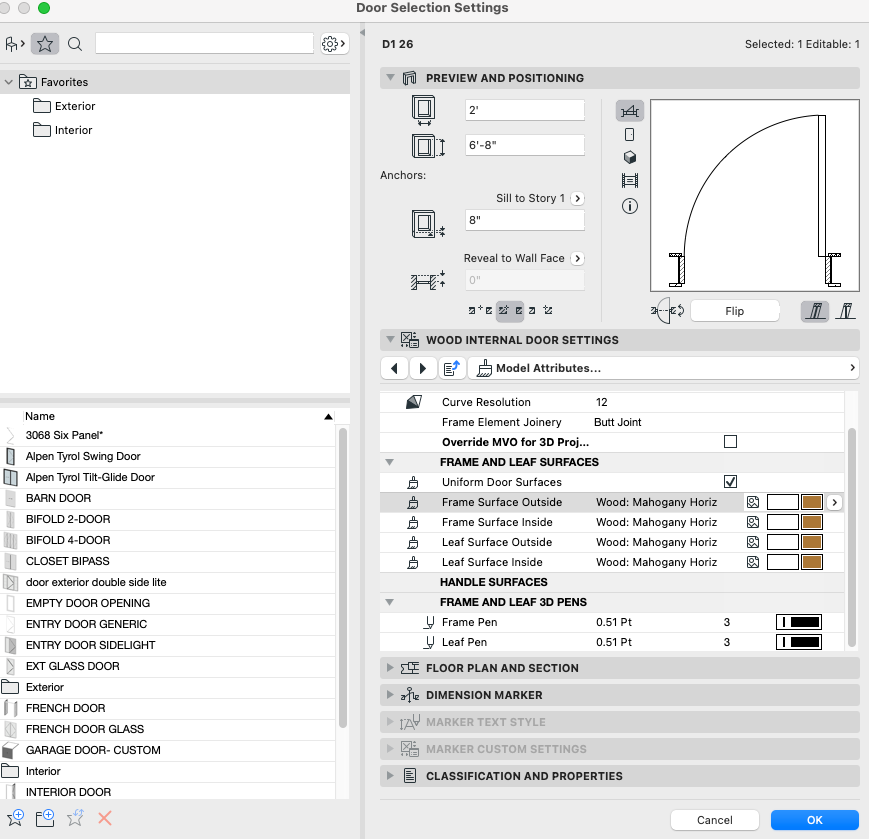
Dave Brach/architect AC28 Macbook M4 Pro OS Sequoia
Solved! Go to Solution.
Solved
1 Solution
Accepted Solutions

David Maudlin
Rockstar
Options
- Mark as New
- Bookmark
- Subscribe
- Mute
- Subscribe to RSS Feed
- Permalink
- Report Inappropriate Content
2023-07-15 01:41 PM
2023-07-15
01:41 PM
Dave:
I think you are missing the Model panel in your Door Settings dialog box, which overrides the door surfaces. You have two options, both involve making changes in the Work Environment.
1. Turn on the Model Panel for the Door's Settings dialog box: Work Environment > Tool Schemes > Tool Settings Dialog Boxes > Door Tool > make Model visible. You will then have the Model Panel available to uncheck the Override Surfaces option.
1. Add the Surface Panel to the Info Box for the Door's Settings: Work Environment > Tool Schemes > Info Box > Door Tool > make Surface panel visible (or if it is visible, move it up the list). You will then have the Surface Panel available in the Info Box to uncheck the Override Surfaces option.
David
David Maudlin / Architect
www.davidmaudlin.com
Digital Architecture
AC29 USA Perpetual • Mac mini M4 Pro OSX15 | 64 gb ram • MacBook Pro M3 Pro OSX14 | 36 gb ram
www.davidmaudlin.com
Digital Architecture
AC29 USA Perpetual • Mac mini M4 Pro OSX15 | 64 gb ram • MacBook Pro M3 Pro OSX14 | 36 gb ram
4 Replies 4
Dave Brach
Expert
Options
- Mark as New
- Bookmark
- Subscribe
- Mute
- Subscribe to RSS Feed
- Permalink
- Report Inappropriate Content
2023-07-14
09:49 PM
- last edited on
2023-07-25
09:54 PM
by
Laszlo Nagy
2023-07-14
09:49 PM
I just tried the "surface painter" tool and that actually does change the surface, although it does not change the surfaces listed in the settings. Seems buggy.
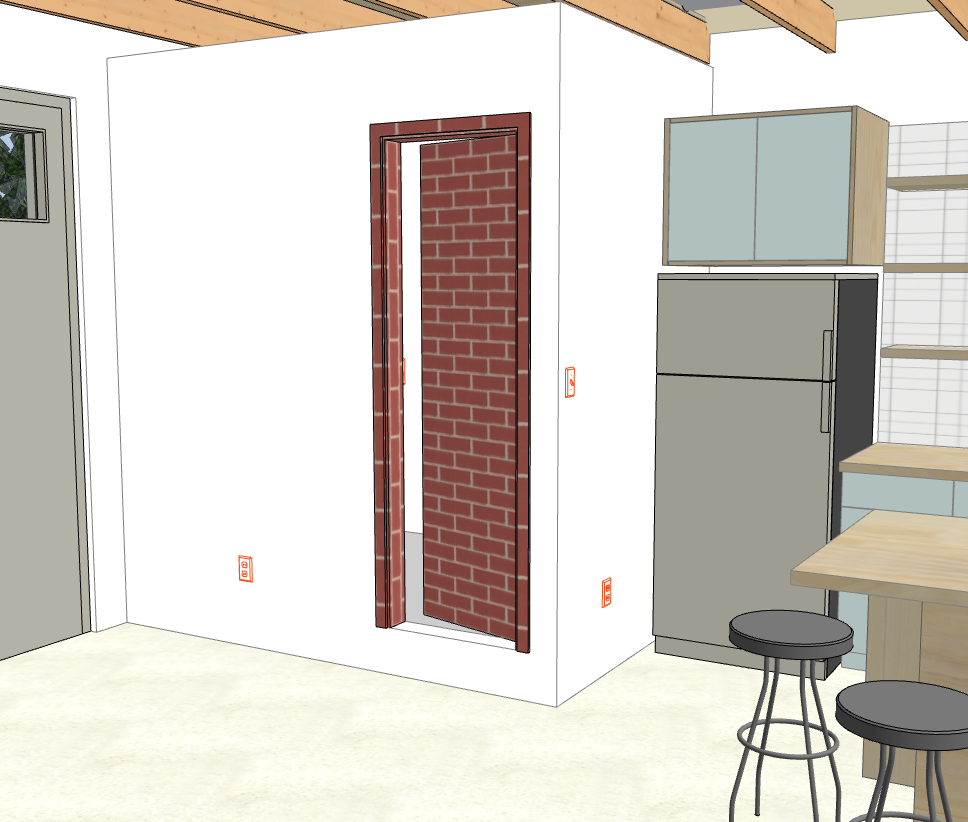
Dave Brach/architect AC28 Macbook M4 Pro OS Sequoia
David Maudlin
Rockstar
Options
- Mark as New
- Bookmark
- Subscribe
- Mute
- Subscribe to RSS Feed
- Permalink
- Report Inappropriate Content
2023-07-15 01:41 PM
2023-07-15
01:41 PM
Dave:
I think you are missing the Model panel in your Door Settings dialog box, which overrides the door surfaces. You have two options, both involve making changes in the Work Environment.
1. Turn on the Model Panel for the Door's Settings dialog box: Work Environment > Tool Schemes > Tool Settings Dialog Boxes > Door Tool > make Model visible. You will then have the Model Panel available to uncheck the Override Surfaces option.
1. Add the Surface Panel to the Info Box for the Door's Settings: Work Environment > Tool Schemes > Info Box > Door Tool > make Surface panel visible (or if it is visible, move it up the list). You will then have the Surface Panel available in the Info Box to uncheck the Override Surfaces option.
David
David Maudlin / Architect
www.davidmaudlin.com
Digital Architecture
AC29 USA Perpetual • Mac mini M4 Pro OSX15 | 64 gb ram • MacBook Pro M3 Pro OSX14 | 36 gb ram
www.davidmaudlin.com
Digital Architecture
AC29 USA Perpetual • Mac mini M4 Pro OSX15 | 64 gb ram • MacBook Pro M3 Pro OSX14 | 36 gb ram
Dave Brach
Expert
Options
- Mark as New
- Bookmark
- Subscribe
- Mute
- Subscribe to RSS Feed
- Permalink
- Report Inappropriate Content
2023-07-19 03:38 AM
2023-07-19
03:38 AM
Yes. that was it. Thank you.
Dave Brach/architect AC28 Macbook M4 Pro OS Sequoia
Lingwisyer
Guru
Options
- Mark as New
- Bookmark
- Subscribe
- Mute
- Subscribe to RSS Feed
- Permalink
- Report Inappropriate Content
2023-08-18 11:04 AM - edited 2023-08-18 11:11 AM
2023-08-18
11:04 AM
Given this solution has been highlighted by the mod team, it would be good to note that this will set a uniform surface to the entire element which will in most cases be problematic if you are showing attached hardware or glazing. This thread also highlights the issue of when a surface override is set unknowingly preventing the display of the intended surfaces.
The fact that these dialogue display settings are not default may also cause conflict within multi-user models if each user is using their own workspace settings.
Ling.
| AC22-29 AUS 3200 | Help Those Help You - Add a Signature |
| Self-taught, bend it till it breaks | Creating a Thread |
| Win11 | i9 10850K | 64GB | RX6600 | Win11 | 7800X3D | 32GB | RTX5070TI |

Didn't find the answer?
Check other topics in this Forum
Back to ForumRead the latest accepted solutions!
Accepted SolutionsStart a new conversation!

Suggested topics
